Back
Back
How To Claim Google Knowledge Panel
Step by step walkthrough of the claim flow, verification checks, and the structured data you need before you hit Own this knowledge panel
Dec 9, 2025

For artists, the most valuable wall is no longer just in a gallery or museum. It is the page that appears when someone types your name into Google.
Curators, festival bookers, journalists, collectors, even other artists you want to collaborate with all do the same thing before they commit. They search your name. If that page looks chaotic, out of date or full of unofficial profiles, they have to work hard to decide who you are and whether you are worth the risk.
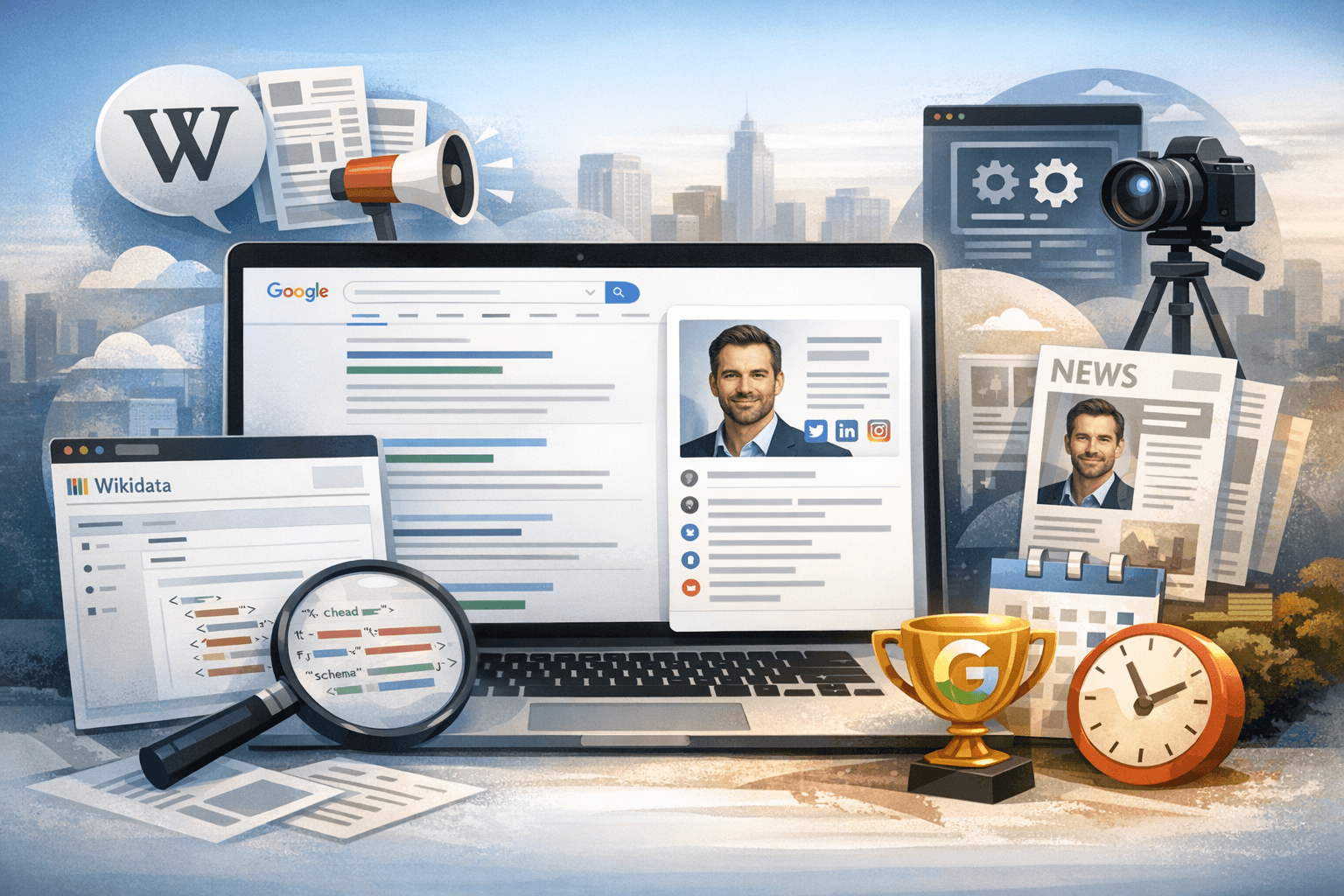
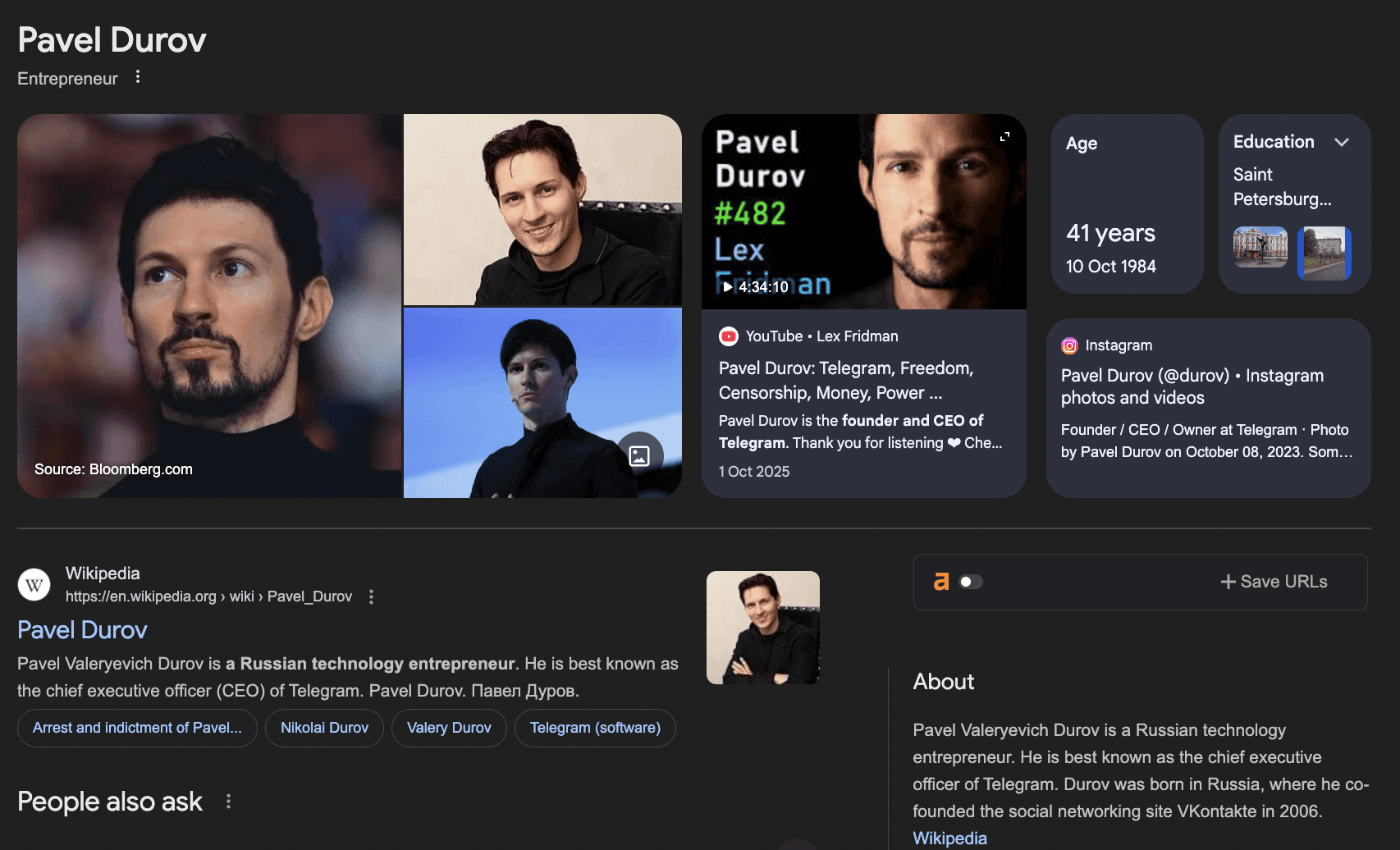
A Google Knowledge Panel changes that. It is the box on the right side of the results (or at the top on mobile) that treats you like an established entity: name, photo, discipline, notable works, official links, sometimes even a short description of your practice. It is the closest thing the internet has to a clean, framed artist label next to your name.
This article breaks down what a Knowledge Panel is, why it matters for artists specifically, and what actually moves the needle if you want to qualify for one.
0. Check that a claimable panel already exists
You can only claim what already exists as an entity. If you dont have one, you can check if you are eligible for a Google Knowledge Panel here.
Search for your exact name or brand name on desktop.
Look for a box on the right side that shows:
Name
Image
Short description
Links and basic facts
That is a Knowledge Panel backed by a Knowledge Graph entity.
You can claim it if:
It represents you or your organisation
It is not a private “local only” widget from Google Business Profile
You see a small link like “Claim this knowledge panel” or “Own this knowledge panel?” at the bottom
If there is no panel, or only a Google Business Profile card with maps and reviews, you are still in the “earn the entity” phase, not the “claim” phase.
1. Understand what Google is actually verifying
When you claim a panel, Google is not giving you ownership of the entity. It is doing something more specific and technical:
It keeps its own internal entity ID for you
It accepts that a particular Google account is authorised to suggest edits for that entity
It uses external identity links as verification signals
In other words, the claim process answers one question:
“Is the person signing in the same person or organisation that all these web profiles and the entity are talking about?”
You increase your chances of a smooth claim if your web presence already looks like one coherent identity.
2. Prepare the assets that matter
Before you press any “Claim” button, line up the pieces that the verification flow will look at.
2.1 Google account
Use a Google account that is clearly connected to you or your brand:
For individuals: ideally the same account you use for your official YouTube channel or a Gmail with your name
For organisations: a Workspace account on your domain (you@yourbrand.com)
Google looks at the relationship between this account and the public profiles it sees in the panel.
2.2 Official profiles that appear in the panel
Look at the panel and note which profiles are listed:
Website
YouTube
X / Twitter
Instagram
Facebook
Spotify, Apple Music, LinkedIn, etc
Where possible, make sure you can log in to the exact profiles that appear there. The claim wizard often uses them as proof.
2.3 Your website as a canonical source
For personal and brand entities, your website is the “master record” from the system’s perspective.
Ideally it should:
Clearly state who you are, with a short bio and role
Use your correct name or brand name in the title and header
Include an “About” or “Team” page that matches the Knowledge Panel
Link to your main social profiles
Use structured data (schema.org
PersonorOrganization) that matches the panel
You do not need to write the JSON-LD by hand, but if you have a developer, this is where you give the graph a clean, machine readable version of your identity.
3. The actual claim flow step by step
Once you have checked the prerequisites, you can go through the claim process.
3.1 Find the claim link
Search your name or brand on Google desktop
In the Knowledge Panel, scroll to the bottom
Look for one of:
“Claim this knowledge panel”
“Own this knowledge panel?”
Click it. This will open the Knowledge Panel claim flow.
If you do not see the link, either the panel is not claimable yet or Google has not enabled self claim for that entity type in your region. In that case, you are limited to “Suggest an edit” and feedback for now.
3.2 Sign in with your Google account
You will be prompted to sign in or choose a Google account.
Use the account you prepared earlier. For brands, avoid using a random personal account that has no relationship to your official profiles.
3.3 Connect verified profiles
The wizard will ask you to prove control over profiles that are already linked to the entity.
Typical patterns:
Login with YouTube if the panel shows an official channel
Login with X / Twitter or Facebook if those are listed
For business entities, connect Google Business Profile or Search Console
Treat this like a graph matching step:
Google has a graph of “entity → profiles”
It wants to see “Google account → same profiles”
Once it sees the intersection, it can accept that this Google account is authorised.
3.4 For organisations: confirm domain control
For brands and companies, you often need to show that you can act on behalf of the organisation, not just one social profile.
Common technical checks:
Being a verified owner or full user in Google Search Console for the website
Having a Workspace email at the exact domain in the panel
Sometimes, owning or managing the Google Business Profile that sits alongside the panel
If you do not have Search Console set up, this is a good moment to ask your developer or admin to add your site and give your account owner permission.
4. What changes after you claim
Once verification is complete, the panel will show something like:
“You manage this knowledge panel”
Or an interface to manage your panel in Google Search or Business tools
Technically, your powers are limited but important.
4.1 You can suggest structured edits with higher trust
You can:
Suggest changes to:
Title
Short description
Primary image
Social profiles and official links
Flag incorrect details like wrong job title or outdated role
Provide new sources to back these changes
Google still reviews edits. Claiming the panel does not bypass moderation. It only means your suggestions are treated as high quality signals and are more likely to be accepted if they match what the rest of the web already says.
4.2 You can clean up entity confusion
If your panel has:
Wrong images
Wrong social links
Facts from a different person with the same name
you can use the claimed interface to:
Remove or swap image candidates
Correct profile links to point at your actual accounts
Explain that two different people have been merged and provide proof
Behind the scenes this helps the entity resolution system split or realign nodes in the graph.
5. Technical details that matter if you want smooth edits
Claiming is not the end of the process. It is the start of a maintenance loop.
5.1 NAP and identity consistency
For organisations, the old SEO rule still applies: NAP consistency.
Name
Address
Phone
should match across:
Website
Google Business Profile
Major directories
Profiles shown in the panel
For individuals, you can think in similar terms:
Name
Role
Organisation
Location (at least city or country)
should be coherent across all serious platforms.
Any time you ask Google to change the panel, reviewers and models will compare your request to this background pattern. The closer your story is to the pattern, the easier it is to approve.
5.2 Schema and structured data
If you want to go one level more technical:
Use JSON-LD schema on your site
For a person:
@type: "Person"name,jobTitle,affiliation,url,sameAs
For a company:
@type: "Organization"or"LocalBusiness"Basic contact info plus
sameAslinks
The sameAs array is particularly important. It ties your canonical site to the exact profiles the Knowledge Graph should treat as “you”.
5.3 Keep high trust sources aligned
Any time something major changes, update in this order:
Your own website
The most authoritative external site that mentions you
For people: employer, label, institution
For brands: Crunchbase, official registry, major directory
Your key social profiles
Then request an update through the panel
This sequence keeps the graph’s evidence base consistent before you ask Google to update its summary of that evidence.
6. Troubleshooting edge cases
Case A: “Own this panel?” link does not appear
Possible reasons:
The entity is too small or too ambiguous for self claim
The panel is generated from a source that does not yet support claiming in your region
You are seeing an auto generated local card instead of a full Knowledge Panel
What you can do:
Use the “Feedback” or “Suggest an edit” link for minor corrections
Strengthen your identity signals on the web so the entity becomes clearer
For local businesses, fully verify and optimise your Google Business Profile first
Case B: The panel exists but points to someone else
If the panel carries your name but clearly represents a different person or organisation:
Do not claim it
Use the “Feedback” link to explain the clash and provide links that prove the other identity
Work on your own identity footprint until Google is likely to generate a separate entity
Trying to force claim on a mismatched entity can create more confusion in the graph.
Case C: Multiple panels or fragmented entities
Sometimes you see:
One panel for your band
Another panel for you as an individual
Or different panels per language or region
In these cases:
Claim each entity that genuinely represents you or your organisation
Align content so they reference each other cleanly
Do not try to collapse fundamentally different entities into one panel just because they share a name
The mental model to keep in mind
Technically, claiming a Knowledge Panel is not about “gaining control over a box on Google”.
It is about:
Being recognised as a stable entity in the Knowledge Graph
Proving to Google that your account and your web presence map cleanly to that entity
Keeping your identity data consistent so your suggestions are easy to trust
If you treat the panel as a compact, structured API response about you, the whole process makes more sense. Your job is to keep the underlying data clean. The claim button is just how you tell Google “I am the right person to help with that.”

For artists, the most valuable wall is no longer just in a gallery or museum. It is the page that appears when someone types your name into Google.
Curators, festival bookers, journalists, collectors, even other artists you want to collaborate with all do the same thing before they commit. They search your name. If that page looks chaotic, out of date or full of unofficial profiles, they have to work hard to decide who you are and whether you are worth the risk.
A Google Knowledge Panel changes that. It is the box on the right side of the results (or at the top on mobile) that treats you like an established entity: name, photo, discipline, notable works, official links, sometimes even a short description of your practice. It is the closest thing the internet has to a clean, framed artist label next to your name.
This article breaks down what a Knowledge Panel is, why it matters for artists specifically, and what actually moves the needle if you want to qualify for one.
0. Check that a claimable panel already exists
You can only claim what already exists as an entity. If you dont have one, you can check if you are eligible for a Google Knowledge Panel here.
Search for your exact name or brand name on desktop.
Look for a box on the right side that shows:
Name
Image
Short description
Links and basic facts
That is a Knowledge Panel backed by a Knowledge Graph entity.
You can claim it if:
It represents you or your organisation
It is not a private “local only” widget from Google Business Profile
You see a small link like “Claim this knowledge panel” or “Own this knowledge panel?” at the bottom
If there is no panel, or only a Google Business Profile card with maps and reviews, you are still in the “earn the entity” phase, not the “claim” phase.
1. Understand what Google is actually verifying
When you claim a panel, Google is not giving you ownership of the entity. It is doing something more specific and technical:
It keeps its own internal entity ID for you
It accepts that a particular Google account is authorised to suggest edits for that entity
It uses external identity links as verification signals
In other words, the claim process answers one question:
“Is the person signing in the same person or organisation that all these web profiles and the entity are talking about?”
You increase your chances of a smooth claim if your web presence already looks like one coherent identity.
2. Prepare the assets that matter
Before you press any “Claim” button, line up the pieces that the verification flow will look at.
2.1 Google account
Use a Google account that is clearly connected to you or your brand:
For individuals: ideally the same account you use for your official YouTube channel or a Gmail with your name
For organisations: a Workspace account on your domain (you@yourbrand.com)
Google looks at the relationship between this account and the public profiles it sees in the panel.
2.2 Official profiles that appear in the panel
Look at the panel and note which profiles are listed:
Website
YouTube
X / Twitter
Instagram
Facebook
Spotify, Apple Music, LinkedIn, etc
Where possible, make sure you can log in to the exact profiles that appear there. The claim wizard often uses them as proof.
2.3 Your website as a canonical source
For personal and brand entities, your website is the “master record” from the system’s perspective.
Ideally it should:
Clearly state who you are, with a short bio and role
Use your correct name or brand name in the title and header
Include an “About” or “Team” page that matches the Knowledge Panel
Link to your main social profiles
Use structured data (schema.org
PersonorOrganization) that matches the panel
You do not need to write the JSON-LD by hand, but if you have a developer, this is where you give the graph a clean, machine readable version of your identity.
3. The actual claim flow step by step
Once you have checked the prerequisites, you can go through the claim process.
3.1 Find the claim link
Search your name or brand on Google desktop
In the Knowledge Panel, scroll to the bottom
Look for one of:
“Claim this knowledge panel”
“Own this knowledge panel?”
Click it. This will open the Knowledge Panel claim flow.
If you do not see the link, either the panel is not claimable yet or Google has not enabled self claim for that entity type in your region. In that case, you are limited to “Suggest an edit” and feedback for now.
3.2 Sign in with your Google account
You will be prompted to sign in or choose a Google account.
Use the account you prepared earlier. For brands, avoid using a random personal account that has no relationship to your official profiles.
3.3 Connect verified profiles
The wizard will ask you to prove control over profiles that are already linked to the entity.
Typical patterns:
Login with YouTube if the panel shows an official channel
Login with X / Twitter or Facebook if those are listed
For business entities, connect Google Business Profile or Search Console
Treat this like a graph matching step:
Google has a graph of “entity → profiles”
It wants to see “Google account → same profiles”
Once it sees the intersection, it can accept that this Google account is authorised.
3.4 For organisations: confirm domain control
For brands and companies, you often need to show that you can act on behalf of the organisation, not just one social profile.
Common technical checks:
Being a verified owner or full user in Google Search Console for the website
Having a Workspace email at the exact domain in the panel
Sometimes, owning or managing the Google Business Profile that sits alongside the panel
If you do not have Search Console set up, this is a good moment to ask your developer or admin to add your site and give your account owner permission.
4. What changes after you claim
Once verification is complete, the panel will show something like:
“You manage this knowledge panel”
Or an interface to manage your panel in Google Search or Business tools
Technically, your powers are limited but important.
4.1 You can suggest structured edits with higher trust
You can:
Suggest changes to:
Title
Short description
Primary image
Social profiles and official links
Flag incorrect details like wrong job title or outdated role
Provide new sources to back these changes
Google still reviews edits. Claiming the panel does not bypass moderation. It only means your suggestions are treated as high quality signals and are more likely to be accepted if they match what the rest of the web already says.
4.2 You can clean up entity confusion
If your panel has:
Wrong images
Wrong social links
Facts from a different person with the same name
you can use the claimed interface to:
Remove or swap image candidates
Correct profile links to point at your actual accounts
Explain that two different people have been merged and provide proof
Behind the scenes this helps the entity resolution system split or realign nodes in the graph.
5. Technical details that matter if you want smooth edits
Claiming is not the end of the process. It is the start of a maintenance loop.
5.1 NAP and identity consistency
For organisations, the old SEO rule still applies: NAP consistency.
Name
Address
Phone
should match across:
Website
Google Business Profile
Major directories
Profiles shown in the panel
For individuals, you can think in similar terms:
Name
Role
Organisation
Location (at least city or country)
should be coherent across all serious platforms.
Any time you ask Google to change the panel, reviewers and models will compare your request to this background pattern. The closer your story is to the pattern, the easier it is to approve.
5.2 Schema and structured data
If you want to go one level more technical:
Use JSON-LD schema on your site
For a person:
@type: "Person"name,jobTitle,affiliation,url,sameAs
For a company:
@type: "Organization"or"LocalBusiness"Basic contact info plus
sameAslinks
The sameAs array is particularly important. It ties your canonical site to the exact profiles the Knowledge Graph should treat as “you”.
5.3 Keep high trust sources aligned
Any time something major changes, update in this order:
Your own website
The most authoritative external site that mentions you
For people: employer, label, institution
For brands: Crunchbase, official registry, major directory
Your key social profiles
Then request an update through the panel
This sequence keeps the graph’s evidence base consistent before you ask Google to update its summary of that evidence.
6. Troubleshooting edge cases
Case A: “Own this panel?” link does not appear
Possible reasons:
The entity is too small or too ambiguous for self claim
The panel is generated from a source that does not yet support claiming in your region
You are seeing an auto generated local card instead of a full Knowledge Panel
What you can do:
Use the “Feedback” or “Suggest an edit” link for minor corrections
Strengthen your identity signals on the web so the entity becomes clearer
For local businesses, fully verify and optimise your Google Business Profile first
Case B: The panel exists but points to someone else
If the panel carries your name but clearly represents a different person or organisation:
Do not claim it
Use the “Feedback” link to explain the clash and provide links that prove the other identity
Work on your own identity footprint until Google is likely to generate a separate entity
Trying to force claim on a mismatched entity can create more confusion in the graph.
Case C: Multiple panels or fragmented entities
Sometimes you see:
One panel for your band
Another panel for you as an individual
Or different panels per language or region
In these cases:
Claim each entity that genuinely represents you or your organisation
Align content so they reference each other cleanly
Do not try to collapse fundamentally different entities into one panel just because they share a name
The mental model to keep in mind
Technically, claiming a Knowledge Panel is not about “gaining control over a box on Google”.
It is about:
Being recognised as a stable entity in the Knowledge Graph
Proving to Google that your account and your web presence map cleanly to that entity
Keeping your identity data consistent so your suggestions are easy to trust
If you treat the panel as a compact, structured API response about you, the whole process makes more sense. Your job is to keep the underlying data clean. The claim button is just how you tell Google “I am the right person to help with that.”
For artists, the most valuable wall is no longer just in a gallery or museum. It is the page that appears when someone types your name into Google.
Curators, festival bookers, journalists, collectors, even other artists you want to collaborate with all do the same thing before they commit. They search your name. If that page looks chaotic, out of date or full of unofficial profiles, they have to work hard to decide who you are and whether you are worth the risk.
A Google Knowledge Panel changes that. It is the box on the right side of the results (or at the top on mobile) that treats you like an established entity: name, photo, discipline, notable works, official links, sometimes even a short description of your practice. It is the closest thing the internet has to a clean, framed artist label next to your name.
This article breaks down what a Knowledge Panel is, why it matters for artists specifically, and what actually moves the needle if you want to qualify for one.
0. Check that a claimable panel already exists
You can only claim what already exists as an entity. If you dont have one, you can check if you are eligible for a Google Knowledge Panel here.
Search for your exact name or brand name on desktop.
Look for a box on the right side that shows:
Name
Image
Short description
Links and basic facts
That is a Knowledge Panel backed by a Knowledge Graph entity.
You can claim it if:
It represents you or your organisation
It is not a private “local only” widget from Google Business Profile
You see a small link like “Claim this knowledge panel” or “Own this knowledge panel?” at the bottom
If there is no panel, or only a Google Business Profile card with maps and reviews, you are still in the “earn the entity” phase, not the “claim” phase.
1. Understand what Google is actually verifying
When you claim a panel, Google is not giving you ownership of the entity. It is doing something more specific and technical:
It keeps its own internal entity ID for you
It accepts that a particular Google account is authorised to suggest edits for that entity
It uses external identity links as verification signals
In other words, the claim process answers one question:
“Is the person signing in the same person or organisation that all these web profiles and the entity are talking about?”
You increase your chances of a smooth claim if your web presence already looks like one coherent identity.
2. Prepare the assets that matter
Before you press any “Claim” button, line up the pieces that the verification flow will look at.
2.1 Google account
Use a Google account that is clearly connected to you or your brand:
For individuals: ideally the same account you use for your official YouTube channel or a Gmail with your name
For organisations: a Workspace account on your domain (you@yourbrand.com)
Google looks at the relationship between this account and the public profiles it sees in the panel.
2.2 Official profiles that appear in the panel
Look at the panel and note which profiles are listed:
Website
YouTube
X / Twitter
Instagram
Facebook
Spotify, Apple Music, LinkedIn, etc
Where possible, make sure you can log in to the exact profiles that appear there. The claim wizard often uses them as proof.
2.3 Your website as a canonical source
For personal and brand entities, your website is the “master record” from the system’s perspective.
Ideally it should:
Clearly state who you are, with a short bio and role
Use your correct name or brand name in the title and header
Include an “About” or “Team” page that matches the Knowledge Panel
Link to your main social profiles
Use structured data (schema.org
PersonorOrganization) that matches the panel
You do not need to write the JSON-LD by hand, but if you have a developer, this is where you give the graph a clean, machine readable version of your identity.
3. The actual claim flow step by step
Once you have checked the prerequisites, you can go through the claim process.
3.1 Find the claim link
Search your name or brand on Google desktop
In the Knowledge Panel, scroll to the bottom
Look for one of:
“Claim this knowledge panel”
“Own this knowledge panel?”
Click it. This will open the Knowledge Panel claim flow.
If you do not see the link, either the panel is not claimable yet or Google has not enabled self claim for that entity type in your region. In that case, you are limited to “Suggest an edit” and feedback for now.
3.2 Sign in with your Google account
You will be prompted to sign in or choose a Google account.
Use the account you prepared earlier. For brands, avoid using a random personal account that has no relationship to your official profiles.
3.3 Connect verified profiles
The wizard will ask you to prove control over profiles that are already linked to the entity.
Typical patterns:
Login with YouTube if the panel shows an official channel
Login with X / Twitter or Facebook if those are listed
For business entities, connect Google Business Profile or Search Console
Treat this like a graph matching step:
Google has a graph of “entity → profiles”
It wants to see “Google account → same profiles”
Once it sees the intersection, it can accept that this Google account is authorised.
3.4 For organisations: confirm domain control
For brands and companies, you often need to show that you can act on behalf of the organisation, not just one social profile.
Common technical checks:
Being a verified owner or full user in Google Search Console for the website
Having a Workspace email at the exact domain in the panel
Sometimes, owning or managing the Google Business Profile that sits alongside the panel
If you do not have Search Console set up, this is a good moment to ask your developer or admin to add your site and give your account owner permission.
4. What changes after you claim
Once verification is complete, the panel will show something like:
“You manage this knowledge panel”
Or an interface to manage your panel in Google Search or Business tools
Technically, your powers are limited but important.
4.1 You can suggest structured edits with higher trust
You can:
Suggest changes to:
Title
Short description
Primary image
Social profiles and official links
Flag incorrect details like wrong job title or outdated role
Provide new sources to back these changes
Google still reviews edits. Claiming the panel does not bypass moderation. It only means your suggestions are treated as high quality signals and are more likely to be accepted if they match what the rest of the web already says.
4.2 You can clean up entity confusion
If your panel has:
Wrong images
Wrong social links
Facts from a different person with the same name
you can use the claimed interface to:
Remove or swap image candidates
Correct profile links to point at your actual accounts
Explain that two different people have been merged and provide proof
Behind the scenes this helps the entity resolution system split or realign nodes in the graph.
5. Technical details that matter if you want smooth edits
Claiming is not the end of the process. It is the start of a maintenance loop.
5.1 NAP and identity consistency
For organisations, the old SEO rule still applies: NAP consistency.
Name
Address
Phone
should match across:
Website
Google Business Profile
Major directories
Profiles shown in the panel
For individuals, you can think in similar terms:
Name
Role
Organisation
Location (at least city or country)
should be coherent across all serious platforms.
Any time you ask Google to change the panel, reviewers and models will compare your request to this background pattern. The closer your story is to the pattern, the easier it is to approve.
5.2 Schema and structured data
If you want to go one level more technical:
Use JSON-LD schema on your site
For a person:
@type: "Person"name,jobTitle,affiliation,url,sameAs
For a company:
@type: "Organization"or"LocalBusiness"Basic contact info plus
sameAslinks
The sameAs array is particularly important. It ties your canonical site to the exact profiles the Knowledge Graph should treat as “you”.
5.3 Keep high trust sources aligned
Any time something major changes, update in this order:
Your own website
The most authoritative external site that mentions you
For people: employer, label, institution
For brands: Crunchbase, official registry, major directory
Your key social profiles
Then request an update through the panel
This sequence keeps the graph’s evidence base consistent before you ask Google to update its summary of that evidence.
6. Troubleshooting edge cases
Case A: “Own this panel?” link does not appear
Possible reasons:
The entity is too small or too ambiguous for self claim
The panel is generated from a source that does not yet support claiming in your region
You are seeing an auto generated local card instead of a full Knowledge Panel
What you can do:
Use the “Feedback” or “Suggest an edit” link for minor corrections
Strengthen your identity signals on the web so the entity becomes clearer
For local businesses, fully verify and optimise your Google Business Profile first
Case B: The panel exists but points to someone else
If the panel carries your name but clearly represents a different person or organisation:
Do not claim it
Use the “Feedback” link to explain the clash and provide links that prove the other identity
Work on your own identity footprint until Google is likely to generate a separate entity
Trying to force claim on a mismatched entity can create more confusion in the graph.
Case C: Multiple panels or fragmented entities
Sometimes you see:
One panel for your band
Another panel for you as an individual
Or different panels per language or region
In these cases:
Claim each entity that genuinely represents you or your organisation
Align content so they reference each other cleanly
Do not try to collapse fundamentally different entities into one panel just because they share a name
The mental model to keep in mind
Technically, claiming a Knowledge Panel is not about “gaining control over a box on Google”.
It is about:
Being recognised as a stable entity in the Knowledge Graph
Proving to Google that your account and your web presence map cleanly to that entity
Keeping your identity data consistent so your suggestions are easy to trust
If you treat the panel as a compact, structured API response about you, the whole process makes more sense. Your job is to keep the underlying data clean. The claim button is just how you tell Google “I am the right person to help with that.”
Ready to look like someone who matters?
Turn your Google presence into a polished Knowledge Panel that signals credibility to clients, investors and press before you ever walk in the room.
Ready to look like someone who matters?
Turn your Google presence into a polished Knowledge Panel that signals credibility to clients, investors and press before you ever walk in the room.
Ready to look like someone who matters?
Turn your Google presence into a polished Knowledge Panel that signals credibility to clients, investors and press before you ever walk in the room.
Latest posts
Discover other pieces of writing in our blog